Getting Started
Install
- Download the latest zip from the Releases page.
- Extract it anywhere.
- Run
MangaTrans Reader.exe.
Open a manga folder
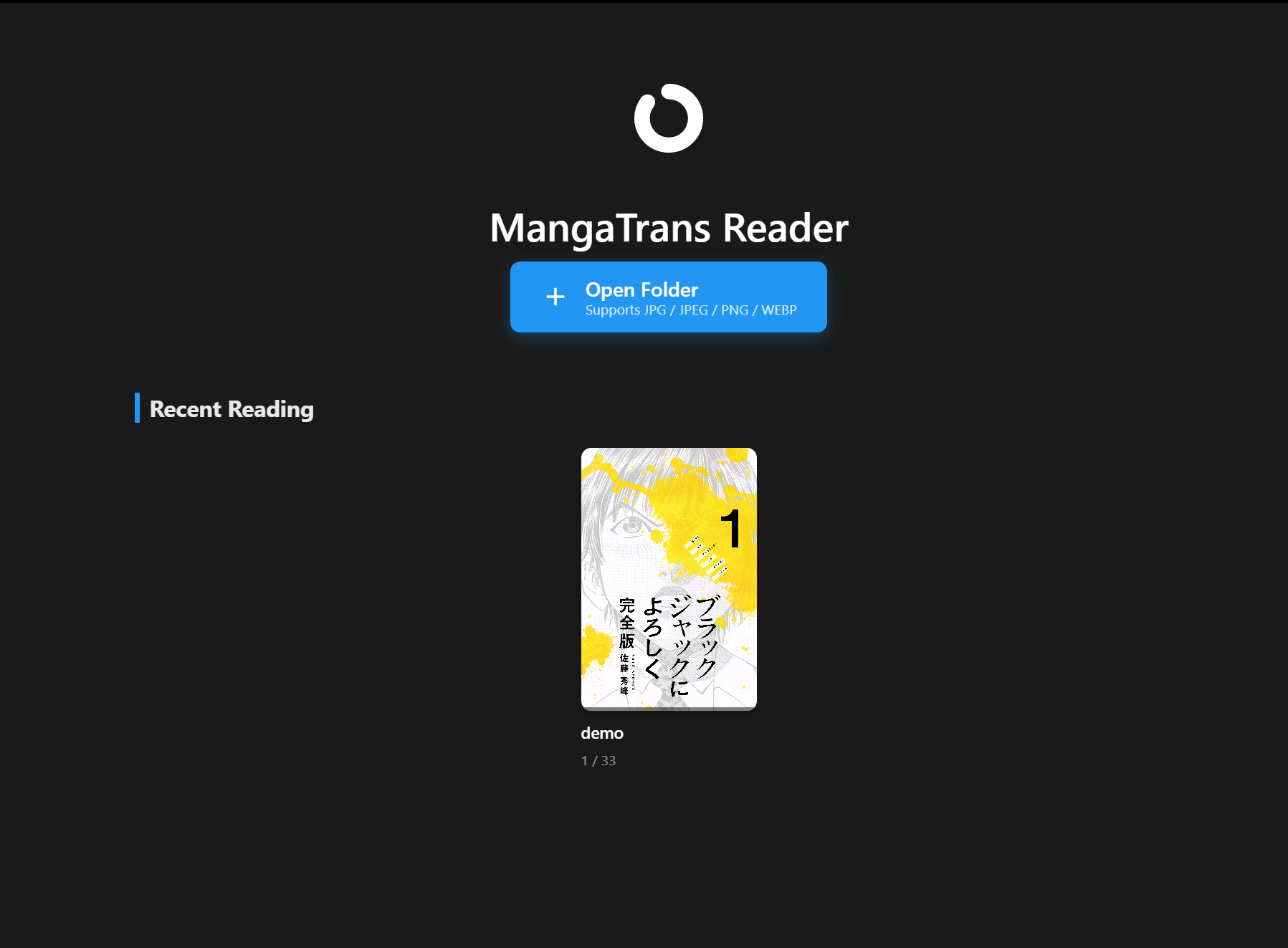
Click Open Folder on the home screen and pick a folder of .jpg / .jpeg / .png / .webp pages.
Manage your library
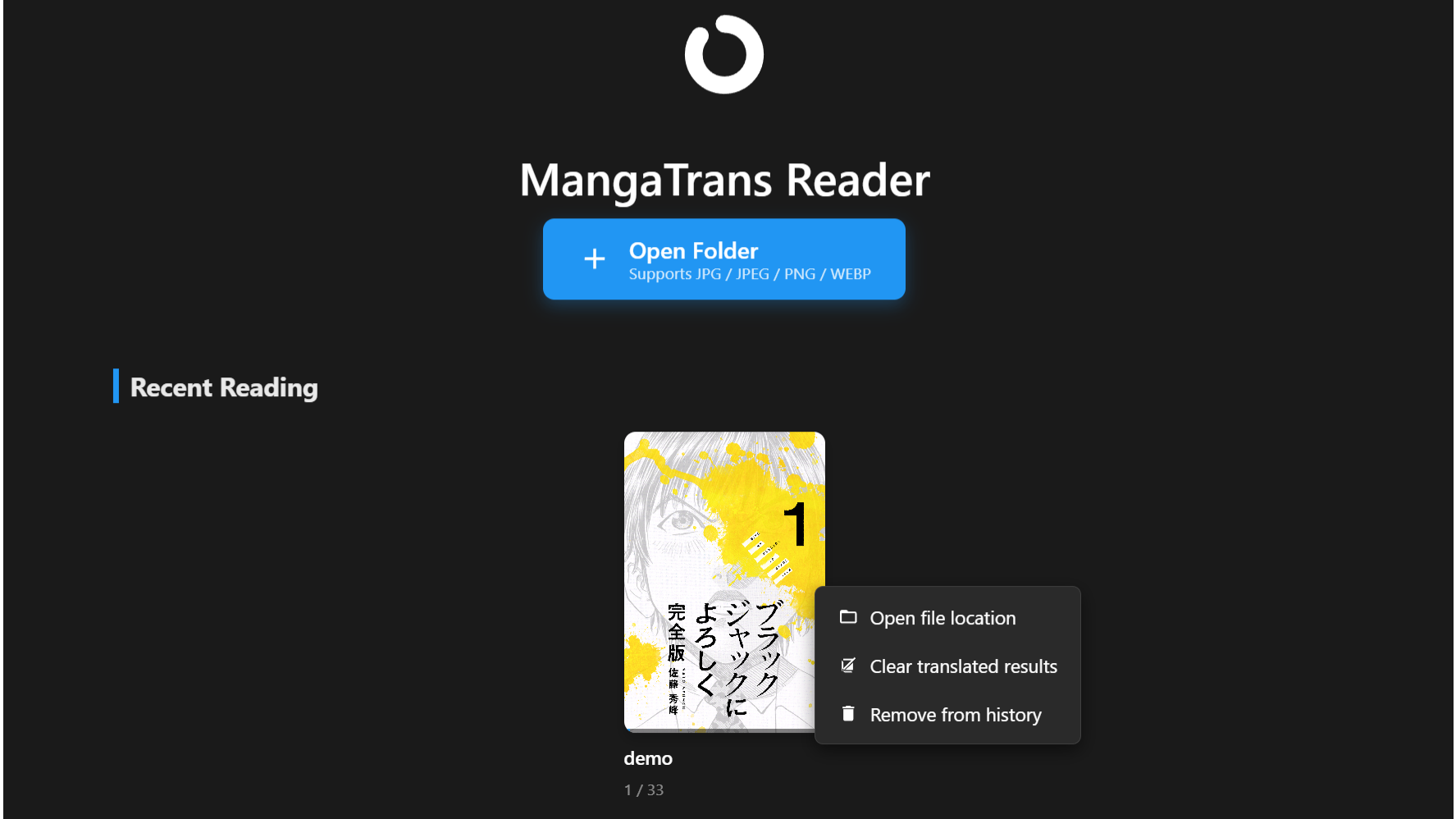
Right-click any entry under Recent Reading to open its file location, clear cached translation results, or remove it from history.
Translate a page
- Open the settings panel (gear icon, top right).
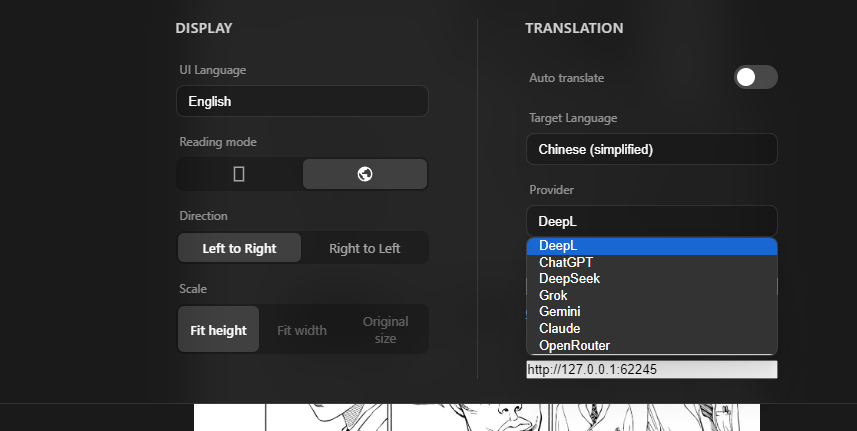
- Under Translation, choose a provider. Google Translate is the default and needs no API key; other providers require their own key.
- Toggle Auto translate, or translate a page manually from the reader controls.
Switching providers
Language & display settings
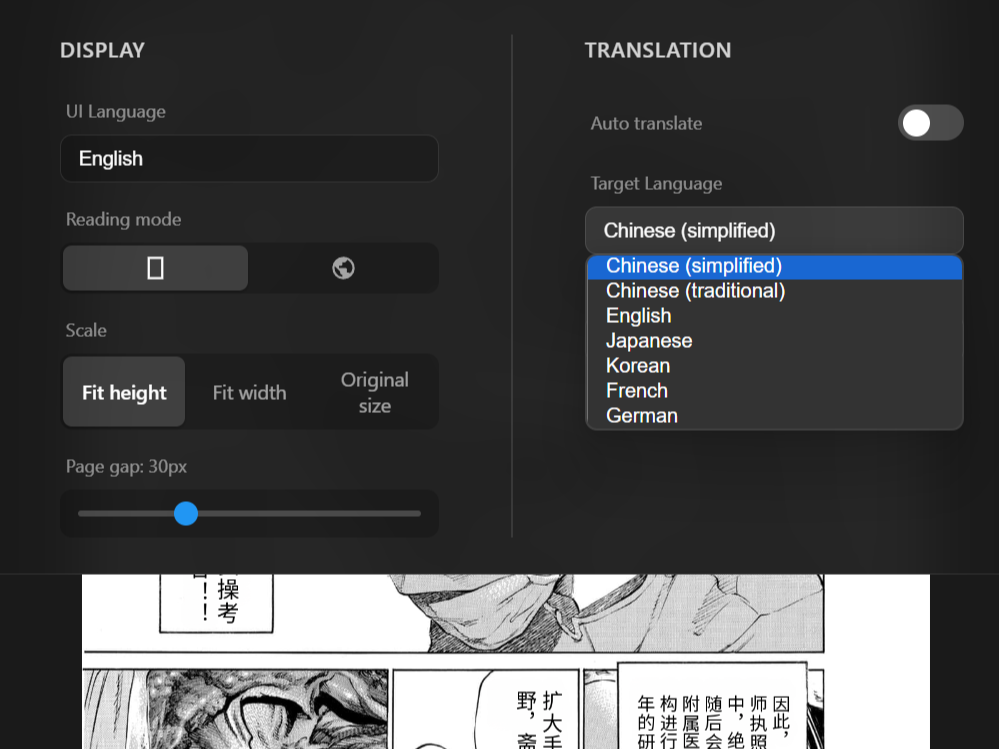
Pick your target language, reading mode, direction, and page scale from the same settings panel.
Local vs. remote server
See the homepage for the short version. In short: local mode (default) runs the bundled backend on your machine; remote mode points the reader at a backend running elsewhere on your network.
Browser Extension
Translate manga images directly on any website in Chrome, using the same backend the desktop app runs - no separate server to set up.
Install
- Download the extension and unzip it.
- Open
chrome://extensionsin Chrome. - Turn on Developer mode (top right).
- Click Load unpacked and select the unzipped folder.
Configure & use
- With the desktop app running, click the Online indicator (bottom right) - this copies the server address to your clipboard.
- Open the extension's popup and paste that address into Server Address.
- Pick a provider. Google Translate works immediately; paste an API key only when using another provider.
- Visit any manga page - hover an image to see the translate marker, click it to translate. Toggle Auto translate to translate visible images automatically as you scroll.
Userscript (Tampermonkey / Violentmonkey / Safari)
For browsers that can't install Chrome extensions - Safari (including iPad), Firefox, or any browser with a userscript manager - a Tampermonkey/ Violentmonkey-compatible userscript provides the same translate-on-hover and auto-translate functionality as the Chrome extension.
Works on iPhone and iPad Safari, not just desktop browsers.
Install
- Install a userscript manager for your browser: Tampermonkey for Chrome/Firefox/Edge, or Userscripts for Safari on iOS/iPadOS.
- Install MangaTrans userscript v1.2.0. The GreasyFork page is also available.
Configure & use
Same as the Chrome extension: open the on-page settings panel (bottom-right gear icon), paste your server address, and choose a provider. Google Translate needs no API key. Then hover an image on any page to translate it, or toggle Auto translate.
Can't reach the server from iPhone/iPad?
The server runs on your computer, and your phone/tablet needs to reach it over your local network. If the app on your phone can't connect:
On Windows, make sure the network you're connected to is set to Private, not Public (Settings → Network & Internet → Wi-Fi → click your network → Network profile type). Windows blocks most inbound connections by default on Public networks.
If that's not enough, Windows Firewall may still be blocking the connection even with an allow rule in place. As a test, try temporarily turning off Microsoft Defender Firewall for your Private network:
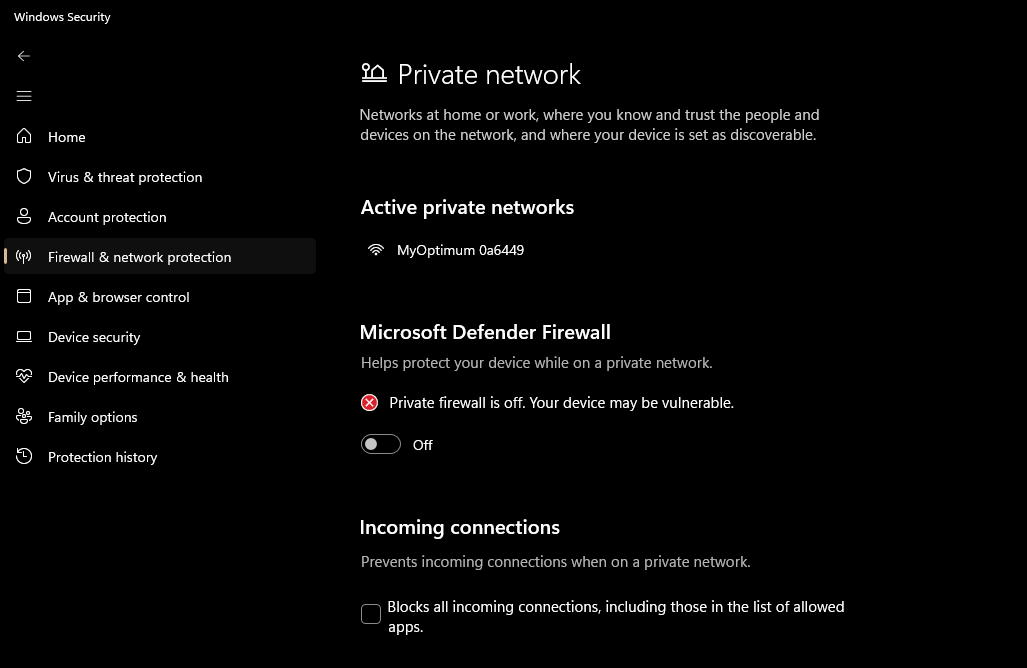
If that fixes it, see the FAQ for how to narrow this down instead of leaving the firewall off permanently.
Supported translation providers
| Provider | Notes |
|---|---|
| Google Translate | Default; no API key required |
| DeepL | Free tier available |
| DeepSeek | |
| ChatGPT | |
| Grok | |
| Gemini | |
| Claude | |
| OpenRouter |